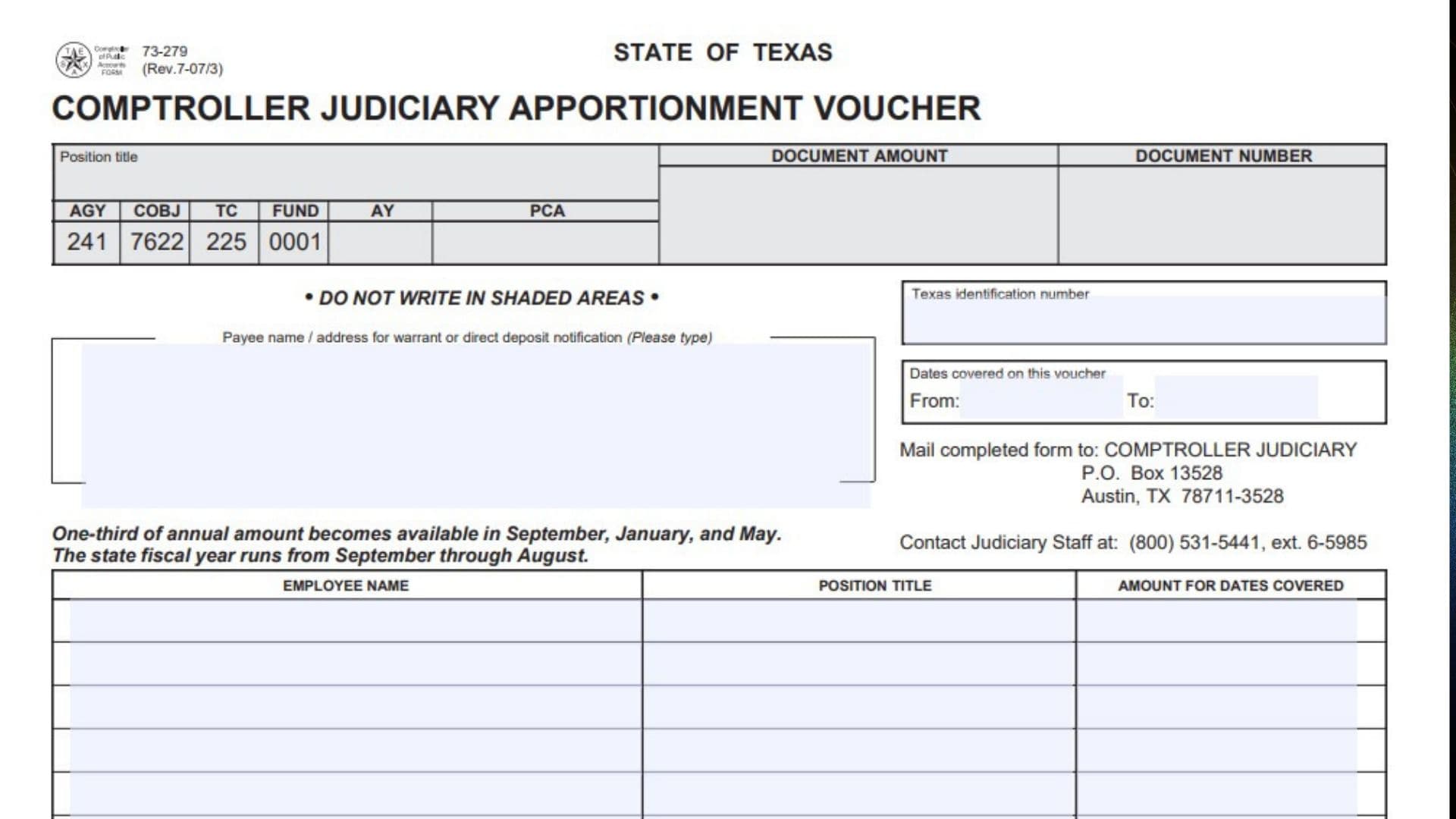
Texas Form 73-279, known as the Comptroller Judiciary Apportionment Voucher, is a payment request document used to report and claim apportioned funds associated with eligible Texas judicial offices. The form provides a structured way to report employee salaries, office operating expenses, and staff travel costs for a specified period. It identifies the payee, the applicable judicial office, the employees receiving salary allocations, and the expenses incurred during the reporting period. The form is designed for use by District Attorneys, County Attorneys, and Criminal District Attorneys, as indicated in its certification section. It collects information about the payee’s name and address, Texas identification number, position title, and dates covered by the voucher. It also provides separate sections for listing employees, recording their positions and salary amounts, documenting office expenses such as rent, utilities, office supplies, and equipment leases, and reporting travel expenses for office staff. The voucher requires the responsible attorney to certify that the account is accurate, correct, and unpaid. It also contains an approval section confirming that the reported goods or services correspond with the applicable contract and that the payment complies with the General Appropriation Act. The form includes an important payment schedule stating that one-third of the annual amount becomes available in September, January, and May. It also explains that the Texas state fiscal year runs from September through August. Completing Form 73-279 accurately is important because the information allows the Comptroller Judiciary to review the reported salaries and expenses, verify the covered period, and process the requested apportionment payment.
How To File Form 73-279
Form 73-279 must be completed with the relevant payee, employee, salary, office expense, and staff travel information before being submitted to the Comptroller Judiciary.
The form contains two pages. The first page includes the payee information, employee salary details, office expenses, expense totals, certification, and approval sections. The reverse side provides additional space for reporting employees, office expenses, and staff travel costs that cannot fit on the first page.
Where To Submit Form 73-279
Mail the completed voucher to the following address:
Comptroller Judiciary
P.O. Box 13528
Austin, TX 78711-3528
For assistance, contact the Judiciary Staff:
Telephone: (800) 531-5441
Extension: 6-5985
Important Filing And Payment Information
The form provides two important details about the apportionment schedule and reporting period.
- Payment availability: One-third of the annual amount becomes available in September, January, and May.
- State fiscal year: The Texas state fiscal year runs from September through August.
Use these instructions when determining the reporting period covered by the voucher.
Information To Prepare Before Completing The Form
Gather the following information before starting:
- Position title associated with the voucher.
- Payee’s name and mailing address.
- Texas identification number.
- Beginning and ending dates covered by the voucher.
- Names of employees receiving salary allocations.
- Each employee’s position title and corresponding amount.
- Additional employee information, if applicable.
- Office expenses, including rent, utilities, supplies, and equipment leases.
- Names and titles of office staff who traveled.
- Travel expenses associated with the reporting period.
- Total salary, office expense, and travel amounts.
- Name and contact details of the person responsible for questions about the voucher.
- Certification and approval information.
The form does not provide a specific list of mandatory supporting documents or a general filing deadline. Follow any additional instructions provided by the Comptroller Judiciary when preparing the submission.

How To Complete Form 73-279
Complete the form from top to bottom, beginning with the voucher identification and payee information. Make sure all amounts correspond to the dates covered by the voucher.
Top Section: Voucher Identification And Accounting Information
Position Title
Enter the position title associated with the judicial office or payee submitting the voucher. This identifies the official position connected with the apportionment request.
Document Amount
This field is reserved for administrative processing. Do not write in the shaded area.
Document Number
This field is reserved for the Comptroller’s document identification and processing. Leave the shaded area blank.
AGY
This field identifies the agency classification associated with the voucher. The form displays the preprinted code 241. Do not change the preprinted value.
COBJ
This field identifies the Comptroller object classification. The form displays the preprinted code 7622. Leave the preprinted value unchanged.
TC
This field contains the transaction code associated with the voucher. The preprinted value is 225.
FUND
This field identifies the fund classification. The form displays the preprinted value 0001.
AY
This field represents the accounting year. The form does not display a preprinted value in this space. Do not guess or enter an accounting code without the appropriate instructions.
PCA
This field identifies the applicable program or cost allocation classification. No value is preprinted in the space shown. Follow the Comptroller Judiciary’s instructions if this field requires completion.
Do Not Write In Shaded Areas
The form clearly instructs users not to enter information in shaded areas. These spaces are reserved for administrative processing. Check the entire form before writing to ensure that no information is entered in a restricted field.
Payee Information
This section identifies the person or entity receiving the payment or direct deposit notification.
Texas Identification Number
Enter the applicable Texas identification number in the designated field. Check the number carefully to ensure that it corresponds with the payee submitting the voucher.
Payee Name
Enter the complete name of the individual or entity receiving the payment. Use the official name associated with the judicial office or payment recipient.
Address For Warrant Or Direct Deposit Notification
Enter the payee’s complete mailing address in the designated area. The form specifically requests that this information be typed.
Provide the correct address so that payment-related correspondence or warrant notifications can be delivered to the appropriate recipient.
Dates Covered On This Voucher – From
Enter the beginning date of the reporting period covered by the voucher. This establishes when the reported salaries and expenses begin.
Dates Covered On This Voucher – To
Enter the ending date of the reporting period. Make sure the beginning and ending dates accurately reflect the period for which payment is being requested.
The same reporting period must be used when recording employee salaries, office expenses, and staff travel costs.
Employee Salary Information – Page 1
The first-page employee table provides space to list employees, their position titles, and the salary amounts associated with the covered dates.
Employee Name
Enter the full name of each employee whose salary is included in the apportionment voucher. Record each employee separately on an individual row.
Position Title
Enter the official job title or position held by the corresponding employee. Make sure the title is associated with the correct employee.
Amount For Dates Covered
Enter the salary amount attributable to the reporting period for each employee. The amount should correspond to the dates entered in the voucher’s reporting period section.
If multiple employees are included, list each employee’s amount separately rather than combining their salaries into one entry.
Total Salaries From Reverse Side Or Additional Pages
Enter the combined salary total reported on the reverse side of the form or on any additional pages used to list employees.
This amount represents the salary information carried forward from the additional employee entries. Check that the figure agrees with the corresponding employee amounts.
Office Expenses – Page 1
This section is used to report expenses associated with operating the judicial office.
The form specifically asks users to describe the type of expense rather than entering only a general combined amount.
Office Expenses
List each applicable office expense separately. The form provides examples of expenses that may be entered:
- Rent.
- Utilities.
- Office supplies.
- Lease of computers.
- Lease of copiers.
- Other specified office expenses.
Describe each expense clearly so the reviewing office can identify what the payment represents.
Expense Amount
Enter the corresponding amount for each listed office expense. Keep each description aligned with its applicable amount.
If there are more office expenses than the first page can accommodate, use the continuation section on the reverse side.
Total Office Expenses (From Reverse Side)
Enter the combined office expense amount recorded on the reverse side of the form.
If additional office expense entries are reported on the second page, add them together and carry the total to this field.
Information Rights Notice
The form includes a notice explaining that individuals have certain rights under Chapters 552 and 559 of the Texas Government Code.
These rights relate to reviewing, requesting, and correcting information maintained about them by the relevant government office.
The notice also explains that individuals can contact the office using the address or toll-free telephone number provided on the form.
This is an informational notice. It does not require a separate entry or signature.
Travel Expenses For Staff
Total Travel For Staff (From Reverse Side)
Enter the total staff travel expenses reported on the reverse side of the voucher.
This amount should represent the combined travel costs listed for the office employees who traveled during the reporting period.
If additional staff travel entries are recorded on the second page, calculate their combined amount and transfer it to this field.
Grand Total For Dates Covered
Grand Total For Dates Covered
Enter the overall amount requested for the reporting period.
This figure combines the three main expense categories:
- Total salaries.
- Total office expenses.
- Total travel for staff.
Add the applicable category totals to determine the overall amount.
Check the calculations carefully to ensure that the grand total agrees with the amounts reported in the individual sections.
Certification Section
The certification section requires the responsible attorney to identify their official capacity and confirm that the reported account is accurate and unpaid.
Printed Name
Enter the full name of the person making the certification. Print the name clearly in the designated space.
District Attorney Of The Judicial District
Complete this option if the person signing is a District Attorney.
Enter the name or identification of the applicable Judicial District in the blank provided.
County Attorney Of County
Complete this option if the person signing is a County Attorney.
Enter the name of the county associated with the County Attorney’s office.
Criminal District Attorney Of County
Complete this option if the person signing is a Criminal District Attorney.
Enter the name of the applicable county.
Only complete the statement that accurately identifies the signer’s official capacity.
Certification Of Account Accuracy
The responsible attorney must certify that the account is true, correct, and unpaid.
Review the reported employee salaries, office expenses, travel costs, and total amount before making this declaration.
Signature
The responsible attorney must sign in the designated signature area to confirm the certification.
Date
Enter the date on which the certification is signed. Make sure the date is clearly recorded and corresponds to the actual signing date.
Contact Information
This section identifies the person who can answer questions about the information reported on the voucher.
Person To Contact Regarding Information On This Form
Enter the full name of the individual who can provide clarification about the voucher. This should be someone familiar with the reported salaries, office expenses, and travel information.
Contact Phone Number
Enter the contact person’s telephone number. Include the appropriate area code so the Comptroller Judiciary can reach them if clarification is needed.
Contact E-mail Address
Enter the contact person’s current email address. Check the spelling carefully to ensure that correspondence can be delivered successfully.
Payment Approval And Audit Section
The bottom section contains the payment approval statement and an area for audit information.
Payment Approval Statement
This statement confirms that the voucher is approved for payment and that the reported goods or services correspond with the applicable contract.
It also confirms that the related invoice is correct and that the payment complies with the General Appropriation Act.
The approval statement is part of the official payment review process. The responsible approving authority should review the statement before approving the voucher.
Date – Payment Approval
Enter the date associated with the approval, as applicable to the authorized reviewing process.
Audited By
This field is reserved for the individual or office responsible for auditing the voucher. It is used to document the audit process.
Do not enter information in shaded administrative areas unless specifically instructed by the Comptroller Judiciary.
How To Complete The Reverse Side Of Form 73-279
The second page is a continuation of the Comptroller Judiciary Apportionment Voucher. It provides additional space for employee salaries, office expenses, and staff travel information that cannot fit in the first-page tables.
Complete this page using the same reporting period and expense information as the first page.
Reverse-Side Voucher Identification
Document Number
This shaded field is reserved for the Comptroller’s administrative identification. Do not write in this area.
Dates Covered On This Voucher – From
Enter the beginning date of the reporting period. It should match the beginning date entered on the first page.
Dates Covered On This Voucher – To
Enter the ending date of the reporting period. It should match the ending date entered on the first page.
Keeping the dates consistent across both pages helps ensure that all additional expenses belong to the same reporting period.
Additional Employees
This section provides extra rows for reporting employee salary information when the first-page table does not provide enough space.
Additional Employees
Enter the full name of each additional employee whose salary is included in the voucher. List each person separately.
Position Title
Enter the corresponding employee’s official position title. Make sure each title matches the correct employee.
Amount For Dates Covered
Enter the salary amount associated with each additional employee for the reporting period.
Use the same covered dates shown on the first page.
Total On This Side For Salaries
Add all salary amounts entered in the Additional Employees section on the reverse side.
Enter the combined amount in the designated total field.
This figure represents the salary total for the continuation page only. It should be included when calculating the total salaries reported on the first page.
Additional Office Expenses
This section provides more space for listing office operating expenses that could not be included in the first-page table.
Office Expenses
Describe each additional office expense separately. Use clear descriptions that identify the nature of the expense.
The first page provides examples such as rent, utilities, office supplies, and leases of computers or copiers.
Amount For Dates Covered
Enter the amount associated with each additional office expense. Make sure every amount corresponds to the correct expense description and reporting period.
Total On This Side For Office Expenses
Add all amounts entered in the reverse-side Office Expenses section.
Enter the combined amount in the designated total field.
This total represents only the office expenses listed on the continuation page and must be included when determining the overall office expense amount on the first page.
Office Staff Travel Expenses
The final table on the reverse side is used to record travel expenses associated with office staff.
Names / Title Of Office Staff That Traveled
Enter the names and position titles of the office employees who traveled during the reporting period.
List each traveling employee separately and make sure the names and titles are clearly identifiable.
Amount For Dates Covered
Enter the applicable travel expense amount associated with each listed employee for the reporting period.
The amount should correspond to the relevant staff travel information.
Total For Travel
Add all travel expense amounts recorded in the continuation table.
Enter the combined amount in the Total For Travel field.
This amount represents the staff travel expenses listed on the reverse side and should be carried forward to the Total Travel For Staff field on the first page.
Final Review Before Filing
Before submitting Form 73-279, review both pages carefully to ensure that all information is accurate, complete, and consistent.
Use the following checklist:
- Entered the correct position title.
- Left all shaded administrative areas blank.
- Checked the preprinted accounting codes.
- Entered the correct Texas identification number.
- Provided the payee’s complete name.
- Entered the correct mailing address for warrant or direct deposit notification.
- Entered the beginning and ending dates covered by the voucher.
- Confirmed that the reporting period is consistent across both pages.
- Listed every employee included in the salary claim.
- Entered the correct position title for each employee.
- Recorded the appropriate salary amount for each employee.
- Completed the additional employee section on the reverse side when necessary.
- Calculated the total salaries from additional pages correctly.
- Described each office expense clearly.
- Entered the corresponding amount for each office expense.
- Included additional office expenses from the reverse side.
- Calculated the total office expenses correctly.
- Listed the names and titles of office staff who traveled.
- Entered the corresponding staff travel amounts.
- Calculated the total staff travel expenses correctly.
- Transferred all applicable totals to the first page.
- Verified the grand total for the dates covered.
- Selected the correct attorney certification category.
- Entered the certifying attorney’s printed name.
- Confirmed that the account is true, correct, and unpaid.
- Obtained the required certification signature.
- Entered the certification date.
- Provided the contact person’s name, telephone number, and email address.
- Reviewed the payment approval statement.
- Checked the audit and approval section.
- Confirmed that the September, January, and May apportionment schedule has been considered.
- Reviewed all calculations for errors or duplicate entries.
Where To Mail The Completed Form
Comptroller Judiciary
P.O. Box 13528
Austin, TX 78711-3528
For Assistance: (800) 531-5441, Extension 6-5985.
Accurately completing Form 73-279 helps ensure that employee salaries, office operating expenses, and staff travel costs are properly reported and that the Comptroller Judiciary has the information needed to review and process the apportionment voucher.