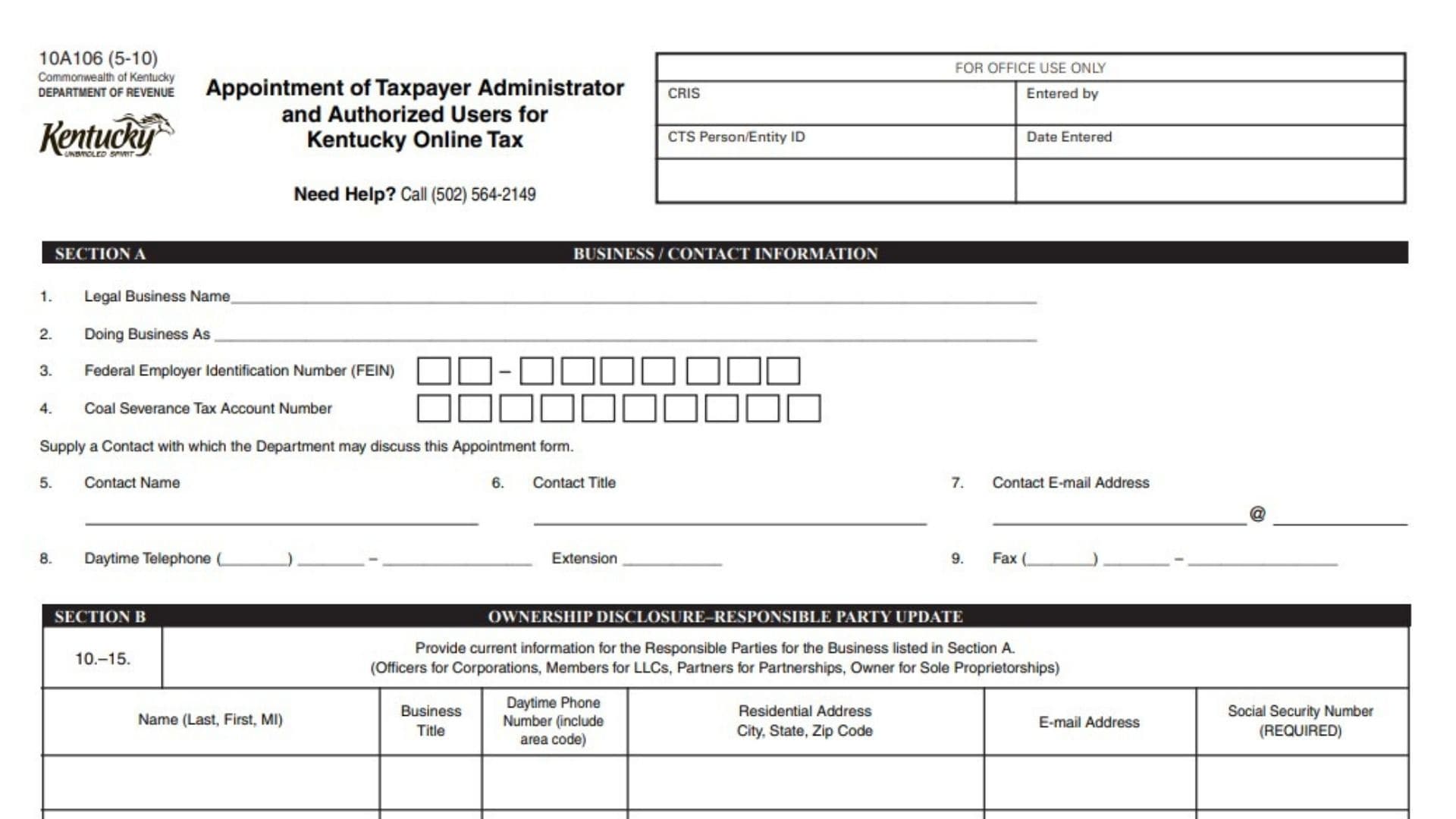
Kentucky Form 10A106, titled “Appointment of Taxpayer Administrator and Authorized Users for Kentucky Online Tax,” is used by a business to identify the people who will manage or use its Kentucky online tax account. The form collects the business’s legal name, trade name, federal tax identification number, applicable coal severance tax account number, and contact information. It also requires disclosure of the business’s current responsible parties, such as corporate officers, limited liability company members, partnership partners, or the owner of a sole proprietorship. The business must appoint one Taxpayer Administrator who will have access to all tax accounts and tax information connected with the business. That administrator may then give individual Authorized Users access to selected accounts and may remove their access when necessary. The form allows the business to list up to six responsible parties, one Taxpayer Administrator, and up to five Authorized Users. Social Security numbers are required for the individuals entered in the ownership, administrator, and authorized-user sections. The completed appointment must be certified and signed by an individual who has authority to act for the business. It may then be mailed or faxed to the Kentucky Department of Revenue for processing.
Who Should Complete Form 10A106?
A business may need to complete this form when it wants to:
- Appoint its first Taxpayer Administrator for Kentucky Online Tax.
- Replace a previously appointed Taxpayer Administrator.
- Provide current ownership or responsible-party information.
- Appoint employees, accountants, tax professionals, or other individuals as Authorized Users.
- Allow selected individuals to access specific Kentucky tax accounts online.
- Update the people who are permitted to work with the business’s online tax information.
The business should choose its Taxpayer Administrator carefully because that person will be able to access all tax accounts and information connected with the business listed in Section A.
Information Needed Before Completing The Form
Gather the following information before starting:
- The business’s complete legal name.
- Any Doing Business As, or DBA, name.
- The business’s FEIN.
- The coal severance tax account number, when applicable.
- A contact person’s name, title, email address, telephone number, extension, and fax number.
- Current information for all responsible parties.
- The selected Taxpayer Administrator’s personal and contact information.
- Personal and contact information for each Authorized User.
- Social Security numbers for all individuals listed in Sections B, C, and D.
- The names and titles of the people authorized to sign the appointment.

How To Complete Kentucky Form 10A106 Line By Line
Form Identification And Office Processing Area
Form Number: 10A106
The number 10A106 identifies the Kentucky Department of Revenue form being completed.
Do not write anything beside the form number.
Revision Date: 5-10
The revision date identifies the version of the form.
It is not the filing date, appointment date, tax period, or date on which the business began operating.
Commonwealth Of Kentucky
This identifies Kentucky as the government jurisdiction that issued the form.
No entry is required.
Department Of Revenue
This identifies the Kentucky Department of Revenue as the agency that receives and processes the appointment.
No entry is required.
Form Title
The title explains that the form is used to appoint a Taxpayer Administrator and Authorized Users for Kentucky Online Tax.
The title is informational and does not require an entry.
Need Help Telephone Number
The form provides the following assistance number:
(502) 564-2149
Use this number when assistance is needed with the appointment or its completion.
For Office Use Only
Do not complete any part of the box marked “For Office Use Only.”
This area is reserved for Kentucky Department of Revenue personnel.
CRIS
Leave the CRIS field blank.
It is completed by the Department of Revenue during internal processing.
Entered By
Leave this field blank.
Department personnel use it to identify the employee who entered or processed the appointment.
CTS Person/Entity ID
Do not enter a number in this field.
It is reserved for the Department’s internal identification system.
Date Entered
Leave this field blank.
The Department records the date when the appointment is entered into its system.
Section A: Business And Contact Information
Section A identifies the business and gives the Department a person to contact about the appointment.
Line 1: Legal Business Name
Enter the business’s complete legal name.
Use the name under which the business is officially registered and identified for Kentucky tax purposes. Do not use an abbreviated, informal, or advertising name unless it is also the legal business name.
Examples include:
- The registered corporate name.
- The legal name of a limited liability company.
- The legal name of a partnership.
- The owner’s legal name for a sole proprietorship.
Make sure the name matches the business’s Kentucky tax records.
Line 2: Doing Business As
Enter the business’s trade name, assumed name, or Doing Business As name.
This is the name the business uses publicly when it differs from its legal name.
For example, a business legally registered as “Blue River Holdings LLC” may operate under the trade name “Blue River Hardware.”
Leave this line blank when the business does not use a separate DBA name.
Line 3: Federal Employer Identification Number
Enter the business’s nine-digit Federal Employer Identification Number, commonly called an FEIN or EIN.
Place one digit in each box and follow the printed number arrangement.
Verify that the FEIN belongs to the legal business named on Line 1. Do not enter an individual’s Social Security number in this field unless the Department has specifically instructed the business to do so.
Line 4: Coal Severance Tax Account Number
Enter the business’s Kentucky coal severance tax account number when the business has one.
Place one digit in each available box.
Leave this line blank when the business does not have a coal severance tax account.
Do not enter a different Kentucky tax account number merely to fill the space.
Department Contact Instruction
The form asks the business to provide someone with whom the Department may discuss the appointment.
The contact should understand why the form is being submitted and should be able to answer questions about the business, responsible parties, Taxpayer Administrator, and Authorized Users.
Line 5: Contact Name
Enter the full name of the person the Department should contact about the appointment.
This person does not automatically become the Taxpayer Administrator merely because their name appears here.
Use the contact’s real name rather than a department name such as “Accounting Office.”
Line 6: Contact Title
Enter the contact person’s position within or relationship to the business.
Examples may include:
- Owner.
- President.
- Managing Member.
- Partner.
- Controller.
- Tax Manager.
- Accountant.
- Office Manager.
Use a title that accurately explains the person’s authority or responsibility.
Line 7: Contact E-Mail Address
Enter the contact person’s complete email address.
The layout separates the portion before the “@” symbol from the domain portion after it.
For example:
Check the spelling carefully and use an address that is monitored regularly.
Line 8: Daytime Telephone
Enter the contact person’s daytime telephone number.
Include:
- The three-digit area code.
- The main telephone number.
- The extension, when applicable.
Use a number where the contact can normally be reached during the Department’s business hours.
Extension
Enter the contact person’s telephone extension when the main number uses an extension system.
Leave this space blank when no extension is needed.
Line 9: Fax Number
Enter the contact person’s fax number, including the area code.
Leave this field blank when the business does not have a fax number, unless the Department has requested one.
Section B: Ownership Disclosure And Responsible-Party Update
Section B is used to provide current information about the people responsible for the business listed in Section A.
The appropriate responsible parties depend on the business structure:
- Corporations should list their officers.
- Limited liability companies should list their members.
- Partnerships should list their partners.
- Sole proprietorships should list the owner.
Lines 10 through 15 provide space for six responsible parties.
Use one complete row for each person.
Lines 10–15: Responsible-Party Entries
Enter a different responsible party on each applicable row.
Do not split one person’s information between two rows. All information for one individual should appear across the same row.
Name: Last, First, Middle Initial
Enter the responsible party’s legal name in the requested order:
Last name, first name, middle initial.
For example:
Morgan, Taylor J.
Use the person’s legal name rather than a nickname.
Business Title
Enter the individual’s position or ownership role within the business.
Examples include:
- President.
- Vice President.
- Treasurer.
- Secretary.
- Chief Executive Officer.
- Managing Member.
- Member.
- General Partner.
- Partner.
- Owner.
The title should reflect the person’s current role.
Daytime Phone Number
Enter the responsible party’s daytime telephone number.
Include the area code.
Use a telephone number where the individual can reasonably be reached if the Department needs to verify the information.
Residential Address
Enter the responsible party’s complete home address.
The form requests a residential address rather than the business’s office address.
Include:
- Street number and street name.
- Apartment or unit number, when applicable.
- City.
- State.
- ZIP code.
Do not use the business address unless it is also the individual’s actual residential address.
City, State, And ZIP Code
Enter the city, two-letter state abbreviation, and ZIP code associated with the residential address.
Review the address for accuracy before moving to the next column.
E-Mail Address
Enter the responsible party’s current email address.
Use an email address that belongs to the individual and is entered correctly.
Social Security Number
Enter the responsible party’s Social Security number.
The form marks this information as required.
Review the number carefully before submitting the appointment. Because Social Security numbers are sensitive, keep the completed form secure and send it only through an approved submission method.
Line 10: First Responsible Party
Use Line 10 for the first corporate officer, LLC member, partner, or sole proprietor.
Complete every column in the row.
Line 11: Second Responsible Party
Use Line 11 for the second responsible party when applicable.
Leave the row blank when the business has only one responsible party.
Line 12: Third Responsible Party
Use Line 12 for a third responsible party.
Make sure the information reflects the person’s current role and contact details.
Line 13: Fourth Responsible Party
Use Line 13 for the fourth responsible party, when applicable.
Do not repeat a person who has already been listed.
Line 14: Fifth Responsible Party
Use Line 14 for a fifth responsible party.
Complete all required columns in the same row.
Line 15: Sixth Responsible Party
Use Line 15 for the sixth responsible party.
If the business has fewer than six responsible parties, leave the remaining rows blank.
The form does not provide instructions for businesses with more than six responsible parties. Contact the Kentucky Online Tax Help Desk for guidance when additional entries are necessary.
Section C: Taxpayer Administrator Appointment
Section C is used to appoint the one person who will serve as the business’s Taxpayer Administrator.
A business may have only one Taxpayer Administrator at a time.
The person appointed in this section will have access to all tax accounts and tax information associated with the business identified in Section A.
To remove the administrator’s access or appoint a replacement, the business must contact the Kentucky Department of Revenue.
Line 16: Taxpayer Administrator
Enter the complete information for the person being appointed as Taxpayer Administrator.
Do not list more than one person in this section.
Name: Last, First, Middle Initial
Enter the administrator’s legal name in the following order:
Last name, first name, middle initial.
Use the person’s legal name rather than a nickname, department name, or shared account name.
Online Access Role
The role is already identified as “Taxpayer Administrator.”
Do not replace it with another title.
This role gives the appointed individual access to all of the business’s Kentucky online tax accounts and related information.
Daytime Phone Number
Enter the administrator’s daytime telephone number, including the area code.
Use a number where the administrator can be reached regarding account access or appointment questions.
Residential Address
Enter the administrator’s complete residential address.
Include the street address, apartment or unit number when applicable, city, state, and ZIP code.
The form requests the person’s residential address, not merely the business’s mailing address.
City, State, And ZIP Code
Enter the city, state abbreviation, and ZIP code for the administrator’s residence.
Confirm that the address is complete and current.
E-Mail Address
Enter the administrator’s current email address.
Use an individual email address that the appointed person can access. Avoid using an inactive address or one that belongs to someone else.
Social Security Number
Enter the Taxpayer Administrator’s Social Security number.
The form identifies this field as required.
Check every digit before submission and protect the completed form from unauthorized access.
Section D: Authorized Users Appointment
Section D allows the Taxpayer Administrator to appoint people who may access specific accounts belonging to the business.
Authorized Users do not automatically receive access to every business tax account. The Taxpayer Administrator grants their access to selected accounts.
The administrator may revoke an Authorized User’s access at any time.
A business may have multiple Authorized Users. Lines 17 through 21 provide space for five individuals.
Lines 17–21: Authorized-User Entries
Use one row for each person who should receive authorized-user access.
Complete all columns across the same row for each individual.
Name: Last, First, Middle Initial
Enter the Authorized User’s legal name in the following order:
Last name, first name, middle initial.
Do not use a username, nickname, shared department name, or business name.
Online Access Role
The role is already identified as “Authorized User.”
Do not change the role designation.
The Taxpayer Administrator will determine which specific accounts the person may access.
Daytime Phone Number
Enter the Authorized User’s daytime telephone number.
Include the area code.
Use a current number where the individual can be reached if questions arise about the appointment.
Residential Address
Enter the Authorized User’s complete residential address.
Include:
- Street address.
- Apartment or unit number, when applicable.
- City.
- State.
- ZIP code.
Do not substitute the business address unless it is also the person’s residence.
City, State, And ZIP Code
Enter the city, state abbreviation, and ZIP code that correspond with the individual’s residential address.
E-Mail Address
Enter the Authorized User’s current email address.
Check the address carefully because it may be used in connection with the person’s online access.
Social Security Number
Enter the Authorized User’s Social Security number.
This information is marked as required.
Protect the completed form because this section contains sensitive personal information.
Line 17: First Authorized User
Use Line 17 for the first person who will receive access to selected business tax accounts.
Complete every column in the row.
Line 18: Second Authorized User
Use Line 18 for a second Authorized User, when applicable.
Leave the row blank when no second user is being appointed.
Line 19: Third Authorized User
Use Line 19 for a third individual who needs selected online account access.
Line 20: Fourth Authorized User
Use Line 20 for the fourth Authorized User, when applicable.
Make sure this person’s information is not mixed with another user’s information.
Line 21: Fifth Authorized User
Use Line 21 for the fifth Authorized User.
Leave any unused rows blank.
The form does not explain how to list more than five Authorized Users. Contact the Kentucky Online Tax Help Desk when additional appointments are needed.
Certification And Signature Section
The appointment must be signed before it is submitted.
By signing, the authorized signer certifies that the statements on the form and any accompanying schedules are correct to the best of the signer’s knowledge and belief.
The signer must have authority to act for the business.
Two signature columns are provided. Complete each applicable signature block. The form does not explain when a second signature is required, so contact the Department when the business is uncertain about its signing requirements.
First Signed Line
The first authorized signer should sign on the first “Signed” line.
A typed name does not replace a handwritten or otherwise accepted signature unless the Department permits that signing method.
First Title Line
Enter the first signer’s official title.
The title should show why the person has authority to certify the appointment.
Examples may include:
- Owner.
- President.
- Managing Member.
- Partner.
- Corporate Officer.
First Date Line
Enter the date on which the first signer signs the form.
Use the month/day/year format.
Do not enter the business formation date, tax-period ending date, or proposed administrator start date unless it is also the actual signing date.
Second Signed Line
Use the second signature line when another authorized person must or will certify the appointment.
The second person should sign their own name.
Do not copy the first signer’s signature into this space.
Second Title Line
Enter the second signer’s official business title.
The title should accurately describe that person’s authority.
Second Date Line
Enter the date on which the second signer signs.
Use the month/day/year format.
How To File Kentucky Form 10A106
The completed form may be submitted by mail or fax.
Do not complete and submit the form until all required information has been reviewed and the appointment has been signed.
Filing By Mail
Mail the completed form to:
Kentucky Department of Revenue
P.O. Box 1074, Station 65
Frankfort, Kentucky 40602-1074
Use an envelope that protects the form and the sensitive personal information it contains.
Consider keeping proof of mailing when confirmation of submission may be important.
Filing By Fax
The form may be faxed to:
(502) 564-0995
After faxing, keep the transmission confirmation with the business’s records.
Make sure every page is transmitted clearly and in the correct order.
Do Not Submit To The Help-Desk Number
The assistance number is not the fax number.
Use:
- (502) 564-2149 for completion assistance.
- (502) 564-0995 for fax submission.
Assistance With The Form
For help completing the appointment, call the Kentucky Online Tax Help Desk at:
(502) 564-2149
The stated assistance hours are Monday through Friday, from 8:00 a.m. to 5:00 p.m. Eastern Time.
What Happens After Filing?
The form does not state how long processing will take or describe the exact confirmation method.
The business should retain a complete copy of the submitted appointment. When necessary, contact the Kentucky Online Tax Help Desk to confirm receipt, ask about processing, or determine whether the Taxpayer Administrator’s access has been established.
Submitting the appointment does not itself explain how the administrator will create login credentials or assign access to individual tax accounts. Obtain those instructions from the Kentucky Department of Revenue when access is approved.
Important Access Rules
Only One Taxpayer Administrator Is Allowed
A business may have only one Taxpayer Administrator.
Do not enter multiple people in Section C.
The Administrator Receives Full Account Access
The person appointed in Section C will have access to all tax accounts and information associated with the business in Section A.
Choose someone who is trusted to handle confidential tax information.
Authorized Users Receive Specific Access
Authorized Users may be given access to selected accounts rather than all business accounts.
The Taxpayer Administrator manages that access.
Authorized-User Access Can Be Revoked
The Taxpayer Administrator may remove an Authorized User’s access at any time.
Administrator Changes Require Department Contact
To revoke the current Taxpayer Administrator or appoint a new one, the business must contact the Kentucky Department of Revenue.
Common Form 10A106 Mistakes To Avoid
Completing The Office-Use Box
Do not enter information in the CRIS, CTS Person/Entity ID, Entered By, or Date Entered fields.
Using A DBA Instead Of The Legal Name
Enter the registered legal name on Line 1 and the trade name on Line 2.
Do not reverse them.
Entering The Wrong FEIN
Confirm that the FEIN belongs to the business identified on Line 1.
Line 4 is specifically for a coal severance tax account number.
Leave it blank when it does not apply.
Listing The Wrong Responsible Parties
List current officers, LLC members, partners, or the sole proprietor according to the business’s legal structure.
Using Business Addresses In Personal Address Fields
Sections B, C, and D request residential addresses.
Do not automatically repeat the business address.
Leaving Required Social Security Numbers Blank
Social Security numbers are marked as required for responsible parties, the Taxpayer Administrator, and Authorized Users.
Appointing More Than One Taxpayer Administrator
Only one person may hold the Taxpayer Administrator role for the business.
Assuming Authorized Users Receive Full Access
Authorized Users receive access to specific accounts as granted by the Taxpayer Administrator.
They do not automatically receive the administrator’s full access.
Forgetting To Sign The Appointment
The form states that the appointment must be signed.
An unsigned submission may not be processed.
Sending The Form To The Wrong Number
Use the filing fax number rather than the help-desk telephone number.
Final Form 10A106 Checklist
Before submitting the appointment, confirm that you have:
- Entered the complete legal business name.
- Added the DBA name when applicable.
- Entered the correct nine-digit FEIN.
- Added the coal severance tax account number when applicable.
- Provided a knowledgeable contact person.
- Entered the contact’s title and complete email address.
- Included the daytime telephone number and extension when applicable.
- Added the fax number when available.
- Listed all current responsible parties.
- Used one row for each responsible party.
- Entered each responsible party’s legal name and business title.
- Provided each responsible party’s daytime phone number.
- Entered each responsible party’s residential address.
- Added each responsible party’s email address.
- Entered each required Social Security number.
- Appointed only one Taxpayer Administrator.
- Confirmed that the administrator understands the full-access role.
- Entered all required administrator information.
- Listed each Authorized User separately.
- Confirmed that each Authorized User needs access to selected accounts.
- Completed every required Authorized User field.
- Obtained the required authorized signature.
- Entered each signer’s title.
- Added the signing date in month/day/year format.
- Made a complete copy for the business’s records.
- Chosen either mail or fax as the submission method.
- Verified that all pages are included before sending.