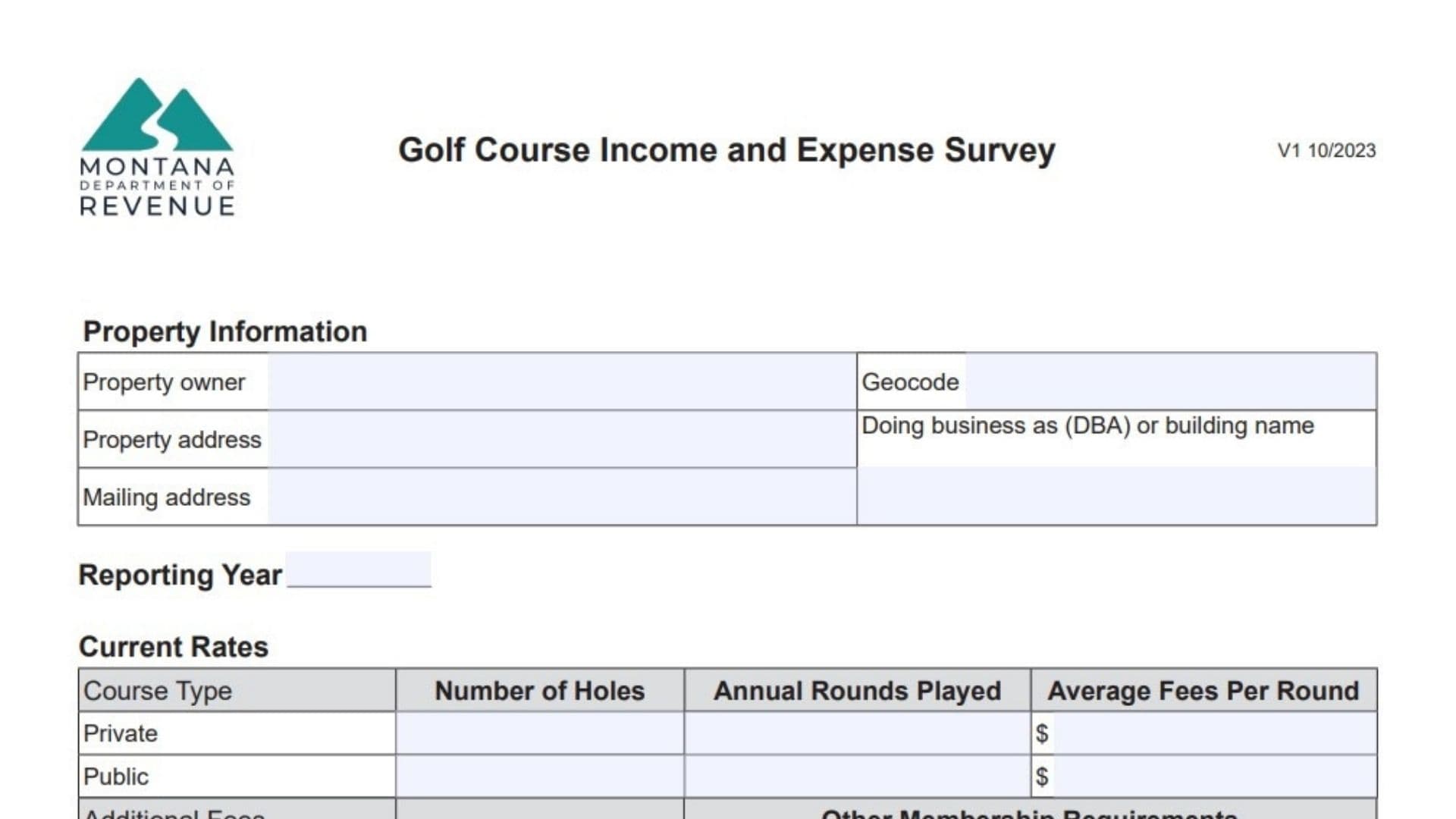
Montana Form IE-GOLF is the Golf Course Rental Income and Expense Survey used by the Montana Department of Revenue to collect accurate operational and financial data from golf courses in the state. Think of it as a specialized data collection tool that allows the state to understand the economics of operating a golf course, which ultimately helps them ensure property valuations are fair, accurate, and reflective of the current market. Because a golf course is a unique type of commercial property with distinct revenue streams (like memberships, greens fees, and clubhouse banquets) and specific operational costs (like turf maintenance, cart leases, and pro shop payroll), a generic commercial property form simply wouldn’t capture the reality of the business. This form solves that by breaking down the facility’s financial health into specific categories covering members, rounds played, current rates, detailed annual income, and itemized annual operating expenses. Property owners and managers are asked to provide their real numbers for the reporting year, as well as details about amenities like driving ranges or swimming pools, and whether the property has been listed for sale recently. It is essentially an economic snapshot of the property that assists the Department of Revenue in the mass appraisal process.
How To File Montana Form IE-GOLF
You should complete the survey using the actual financial and operational data for the reporting year requested. Because this is a specialized survey rather than a standard tax return, you typically submit it directly to the Montana Department of Revenue according to the instructions provided with your survey request letter or via their designated portal/mailing address. Ensure that the person completing the survey signs and dates the form and provides contact information so the Department can reach out if there are questions about the reported data or any irregularities noted.

How To Complete Montana Form IE-GOLF
Property Information
Property Owner: Enter the legal name of the individual or entity that owns the golf course.
Geocode: Enter the specific geocode assigned to your property by the Montana Department of Revenue. (This is a unique identifier used for property tax purposes).
Property Address: Enter the physical street address where the golf course is located.
Doing Business As (DBA) Or Building Name: Enter the name the public knows the course by, if different from the owner’s name.
Mailing Address: Enter the address where you receive official mail for the property.
Reporting Year: Enter the calendar or fiscal year that the financial and operational data on this form covers.
Members And Rounds
Number Of Golf Members: Enter the total count of members who hold golf privileges.
Number Of Total Members: Enter the total count of all members (including social-only or pool/tennis members if applicable).
Golf Member Rounds Played: Enter the total number of rounds played specifically by members during the year.
Total Golf Rounds Played: Enter the total number of rounds played by everyone (members plus public/guests) during the year.
Days Of Operation: Enter the number of days the course was open for business within the calendar year.
Current Rates
Course Type (Private / Public): For the applicable course type, enter the Number of Holes, the Annual Rounds Played, and the Average Fees Per Round in dollars.
Average Monthly Dues (Additional Fees): Enter the average amount a member pays in monthly dues.
Initiation Fees (Additional Fees): Enter the standard one-time fee charged for new memberships.
Golf Course Amenities And Memberships
Golf Course Amenities: Describe the extra facilities available on the property (such as a driving range, putting greens, par 3 course, simulators, tennis courts, swimming pool, gym, or restaurant).
Other Membership Requirements: Provide details on any additional fees, spending minimums, or specific requirements tied to holding a membership.
Annual Income
Membership Dues And Initiation Fees: Enter the total income collected from membership dues and one-time new member initiation fees.
Greens And Cart Fees: Enter the total annual income generated strictly from greens fees and cart rentals.
Food And Beverage: Enter the gross income generated from selling food and beverages.
Clubhouse And Banquets: Enter the income received from renting out the clubhouse or banquet rooms for events.
Golf Merchandise: Enter the total income generated from selling merchandise in the pro shop or elsewhere on the property.
Golf Course Amenities: Enter any other income generated from the amenities you listed earlier (pool charges, tennis fees, driving range buckets, etc.) that do not fit into the lines above.
Annual Operating Expenses: Golf Course Expenses
Golf Shop Payroll And Benefits: Enter the total salary, wages, and benefits paid to staff working in the pro shop.
Course Maintenance And Repairs: Enter the costs for the upkeep of greens, fairways, tee boxes, and irrigation/fertilization systems, including the salaries of the maintenance crew.
Food And Beverage: Enter the cost of the food and beverages that were sold (Cost of Goods Sold).
Golf Merchandise: Enter the cost of the merchandise that was sold (Cost of Goods Sold).
Cart Lease: Enter the total amount paid for leasing golf carts.
Golf Course Amenities: Enter the operational costs associated with running the extra amenities (like the pool, tennis courts, or driving range) that don’t fit into the other categories.
Annual Operating Expenses: Undistributed Expenses
General And Administrative: Enter the costs for professional fees, legal fees, general office supplies, postage, and the payroll specifically allocated to the property’s administrative staff.
Insurance: Enter the annual premium paid for property insurance (fire, loss, etc.).
Management Fee: Enter any fee paid to a third-party management company to oversee the daily operations of the course.
Clubhouse Payroll And Benefits: Enter the wages, salaries, benefits, payroll taxes, and worker’s comp costs for staff dedicated to running the clubhouse.
Mortgage Interest: Enter the interest paid to banks or financial institutions on the property’s mortgage.
Marketing: Enter the total spent on advertising, promotional items, direct mail, sponsorships, and online marketing.
Rent (Land Or Equipment): Enter the rent paid for the land the course sits on (if not fully owned) or the cost of renting equipment used for maintenance and operations.
Property Taxes: Enter the total amount paid in property taxes for the reporting year.
Utilities: Enter the total spent on electricity, gas, water, sewer, trash, phone, and internet.
Depreciation Expense: Enter the annual non-cash expense claimed to recover the loss in value of assets.
Reserves For Replacement: Enter the allowance set aside for replacing short-lived items that won’t last the full economic life of the property.
Capital Expenses: Enter the amount spent on major, non-annual improvements (like a roof replacement, parking lot paving, or a new HVAC system).
Other Expense: Use the three blank lines provided to list and enter the dollar amounts for any significant expenses that do not logically fit into the categories above.
Property Sale History And Clarifications
Has The Property Been Listed For Sale In The Last 5 Years? Check Yes or No.
If Yes, Provide The Date The Property Was Listed: Enter the date it went on the market.
If Yes, Provide The List Price: Enter the dollar amount it was listed for.
Provide Clarification For Any Irregularities: Use the provided text box to explain any unusual spikes or drops in your income or expenses (for example, “course closed for two months due to flooding” or “major one-time equipment purchase”).
Signature And Certification
Survey Completed By: Enter the printed name of the person filling out the form.
Date: Enter the date the form was completed.
Title: Enter the job title of the person completing the form (Owner, General Manager, Accountant, etc.).
Phone: Enter a direct phone number.
Email Address: Enter a direct email address.